Implementing Multi-Factor Authentication for Microsoft 365

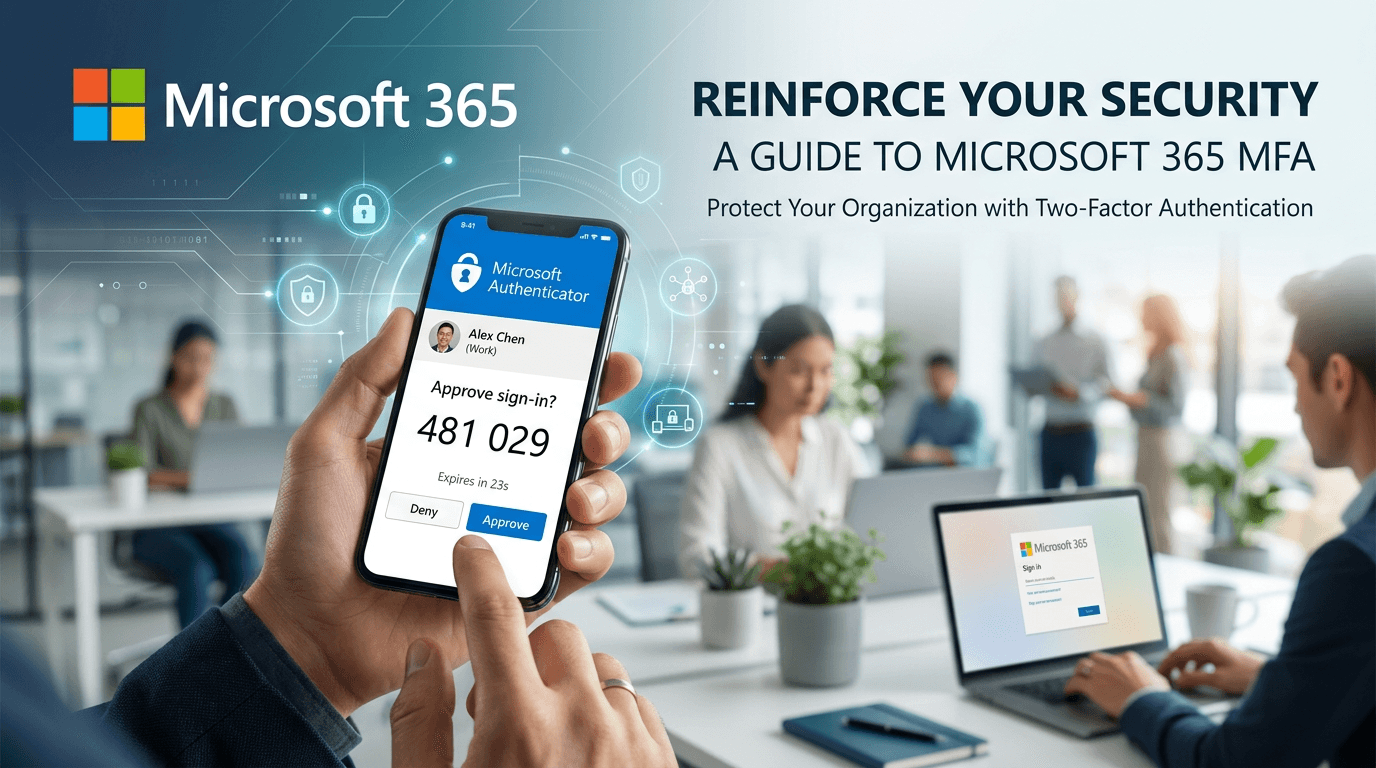
Multi-factor authentication (MFA) is a crucial security measure that provides an additional layer of protection to your Microsoft 365 account. By implementing MFA, you can prevent unauthorized access even if a password is compromised.
Why MFA matters
Passwords alone are increasingly vulnerable to phishing, credential stuffing, and brute-force attacks. MFA requires a second factor—something you have (phone, hardware key) or something you are (biometric)—making it much harder for attackers to gain access.
Enabling MFA in Microsoft 365
-
Sign in to the Microsoft 365 Admin Center as an administrator.
-
Go to Users → Active users → select a user → Manage multifactor authentication.
-
Enable MFA for the user and have them complete registration (typically via the Microsoft Authenticator app, SMS, or a phone call).
-
Consider Conditional Access: Use Azure AD Conditional Access policies to require MFA based on location, device, or risk level.
Best practices
- Enforce MFA for all users, especially those with admin roles
- Prefer authenticator apps over SMS when possible (SMS can be intercepted)
- Use phishing-resistant methods (FIDO2/WebAuthn keys) for high-privilege accounts
- Plan for recovery: Ensure users have a backup method in case they lose their primary device
MFA is one of the most effective controls to prevent account takeover. It should be mandatory for every Microsoft 365 user in your organization.