Removing Admin Rights from a Mac User Account

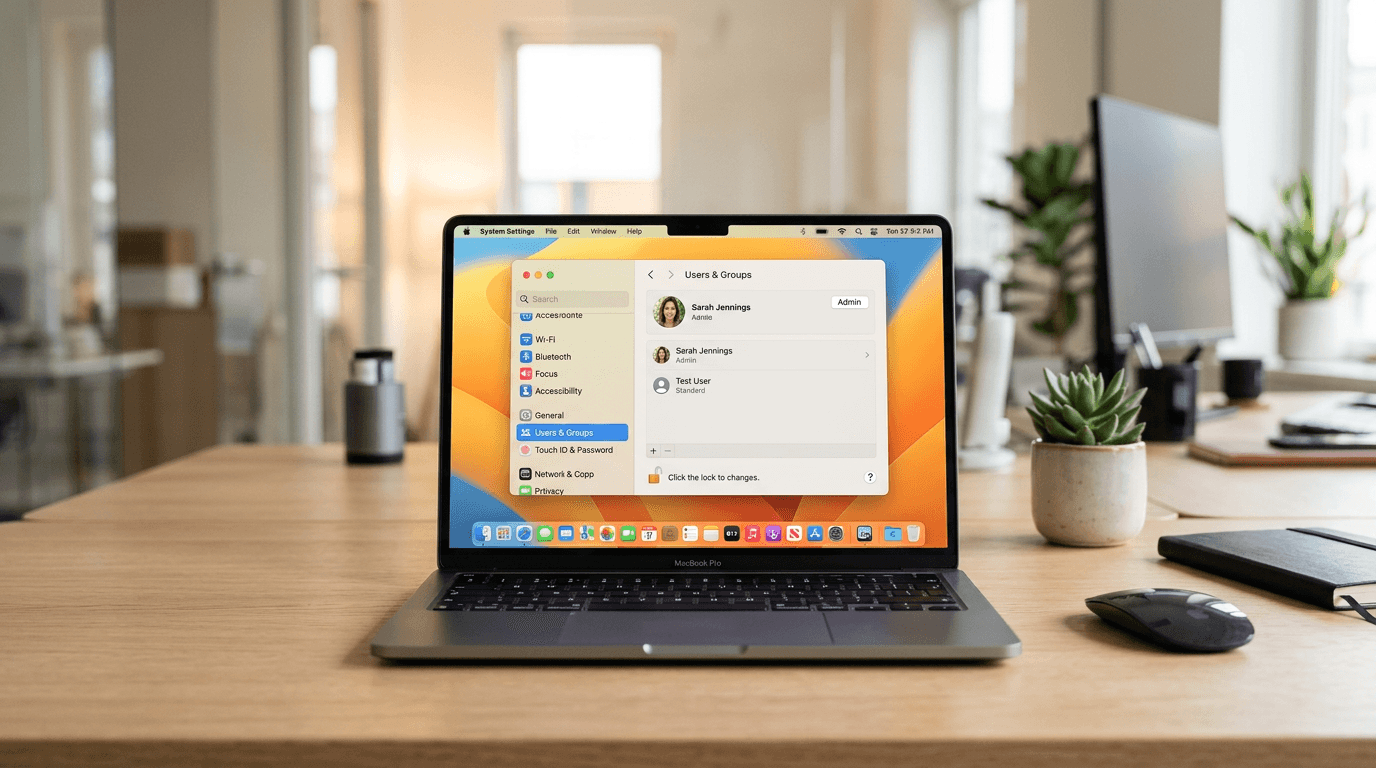
As the owner or administrator of a Mac computer, you may need to remove admin rights from a user account for security purposes. Here are the steps you can follow:
Steps to remove admin rights on macOS
-
Log in with an administrator account (you need at least one admin account on the Mac).
-
Open System Settings (or System Preferences on older macOS): Click the Apple menu → "System Settings" or "System Preferences."
-
Go to Users & Groups: Select "Users & Groups" (or "Users & Groups" in System Preferences).
-
Unlock the settings: Click the lock icon and enter your admin password to make changes.
-
Select the user: Click on the user account you want to modify.
-
Remove admin privileges: Uncheck the box that says "Allow user to administer this computer."
-
Lock the settings again when done.
Important notes
- You cannot remove admin rights from your own account while logged in as that user. Another admin must make the change.
- Ensure at least one admin account remains on the Mac, or you may lock yourself out of administrative functions.
Applying least privilege on Mac workstations helps prevent unauthorized software installation and system changes that could compromise security.